Browser Windows App – Multiple displays (preview)
For a couple of days, the Windows App has made it possible to launch an Azure Virtual Desktop (AVD) session directly in the browser using multiple monitors. This enables users to take advantage of a more spacious and familiar workspace without needing to install or configure a dedicated desktop client. Whether working with multiple applications, comparing documents or managing complex tasks, multi-monitor support helps improve productivity and provides a smoother remote desktop experience.
Multi-Monitor Support in Windows App for the Web Now (Preview)
With all the recent MVP renewal posts on social media, an important update may have gone unnoticed: Microsoft has introduced multi-monitor support in Windows App for the web, now available in Public Preview.
The feature supports remote sessions for both Azure Virtual Desktop (AVD) and Windows 365 Cloud PCs. Previously, browser-based sessions supported only one display. Users who needed to work across multiple monitors had to switch to the Windows App installed on their local Windows or macOS device.
With this new capability, users can now open their AVD remote session or Windows 365 Cloud PC across multiple screens directly from the browser. It is great to see Microsoft continuing to expand the web experience with functionality that IT administrators and end users have been waiting for.
As this feature is currently in Public Preview, availability may depend on connection quality. Microsoft notes that multi-monitor support may not be offered in all scenarios where network conditions are are insufficient.
Requirements
To use multi-monitor support in Windows App for the web, users need a supported desktop browser and more than one connected display. Windows App for the web supports both Azure Virtual Desktop (AVD) and Windows 365 Cloud PCs.
When starting a session, Windows App detects the available displays and can extend the remote desktop across them.
How to Use
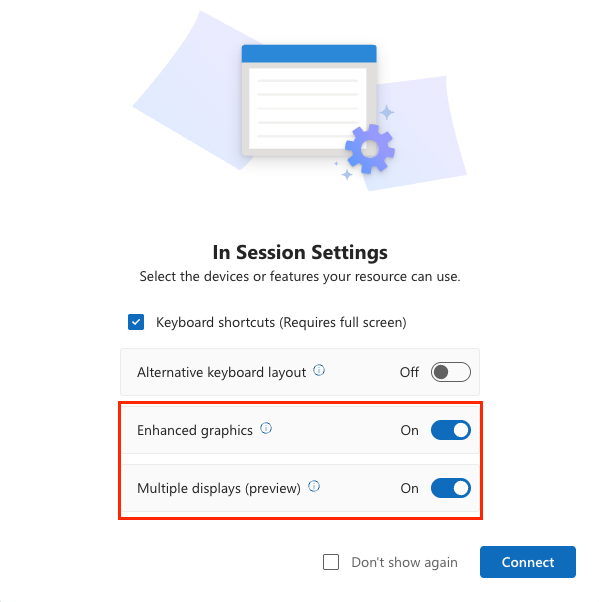
In the Session Settings, a new option called Multiple displays (Preview) is now available. To use more than one monitor, this option must be enabled together with Enhanced graphics.
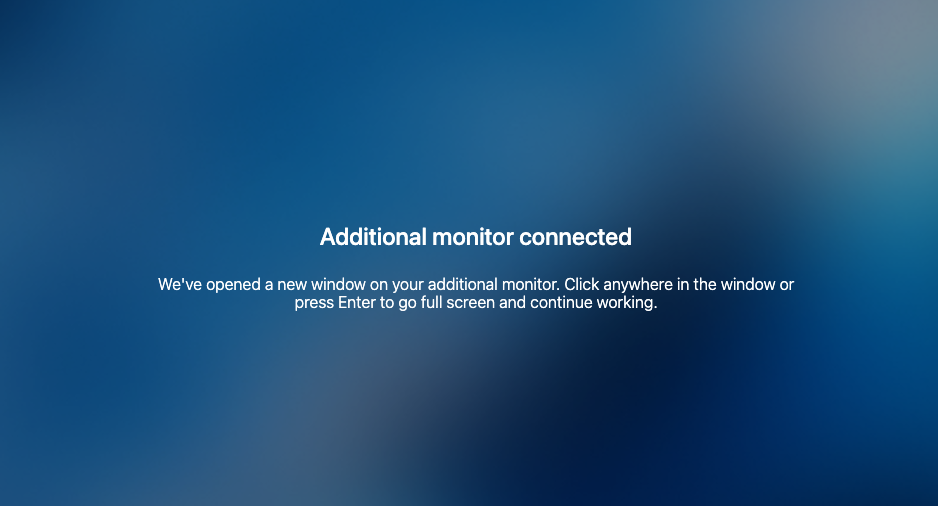
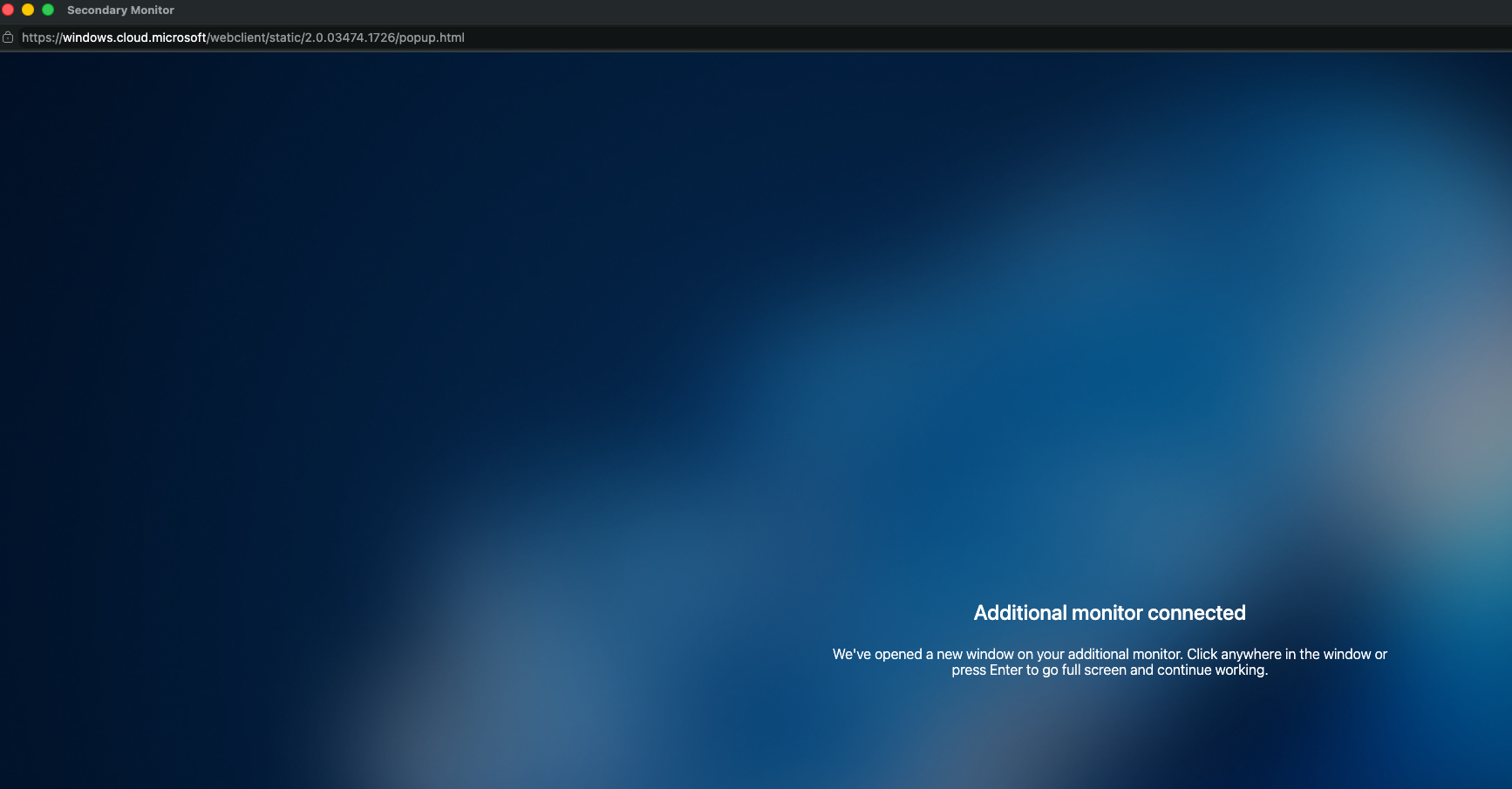
After selecting Connect, the second screen opens in a new browser window. It becomes active as soon as the remote machine is available, allowing users to work across both displays immediately.
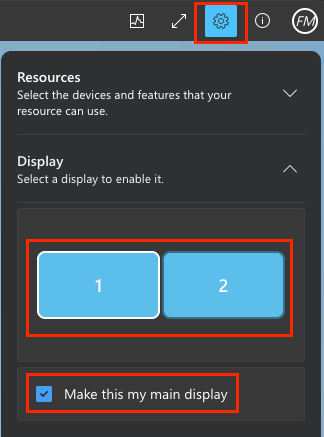
Within the Windows session, there are currently no additional options to rearrange monitors or change the primary display. To do this, open Settings in the top-right corner, select Display, and choose the monitor you want to set as the main display.