
One of the busiest and least enjoyable tasks for any IT team is resetting passwords. Someone returns from leave, a password expires, or a user simply forgets credentials. Those users then have to call your helpdesk. These requests often arrive in waves and quickly overwhelm support staff, clogging the ticket queue and stealing time from higher‑value work. Microsoft Entra self‑service password reset (short SSPR) lets users change or reset their password without helpdesk or admin involvement. If you enable Password Writeback, Entra ID writes the cloud password reset back to your on‑premises Active Directory in real time. That means fewer tickets, faster recovery, and much less admin overhead. In the following blog post, you learn what SSPR is, how to implement SSPR and a best-practice guide to implement SSPR in your environment.
How SSPR Works
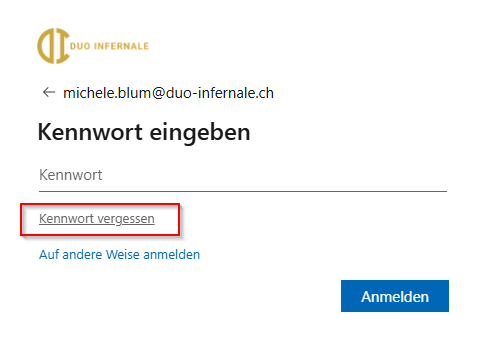
Users reach SSPR via https://aka.ms/sspr or https://passwordreset.microsoftonline.com or the “Forgot my password” link on Microsoft 365 sign‑in pages (the picture is in German, thus it shows “Forgot my password” in German).
- Entra Free: Cloud password reset supported, but writeback NOT.
- Microsoft 365 Business Standard: Cloud password reset supported, but writeback NOT.
- Microsoft 365 Business Premium: Full SSPR features and writeback supported.
- Microsoft Entra ID P1 / P2: Full SSPR features and writeback supported.
Password Reset For Administrators
By default, administrator accounts are enabled for SSPR, but they’re treated differently to keep privileged accounts safer. A built‑in, non‑changeable two‑gate policy is enforced for admins. That means two pieces of authentication data are required (for example, an email plus an authenticator app or phone). The SSPR administrator policy doesn’t depend upon the authentications method policy. Security questions are prohibited, and in trial or free tenants office/mobile voice calls are also blocked.
A two-gate policy applies in the following circumstances:
- All the following Azure administrator roles are affected:
- Application Administrator
- Authentication Administrator
- Billing Administrator
- Compliance Administrator
- Cloud Device Administrator
- Directory Synchronization Accounts (an admin role assigned to the Microsoft Entra Connect service)
- Directory Writers
- Dynamics 365 Administrator
- Exchange Administrator
- Global Administrator
- Helpdesk Administrator
- Intune Administrator
- Microsoft Entra Joined Device Local Administrator
- Partner Tier1 Support
- Partner Tier2 Support
- Password Administrator
- Power Platform Administrator
- Privileged Authentication Administrator
- Privileged Role Administrator
- Security Administrator
- Service Support Administrator
- SharePoint Administrator
- Skype for Business Administrator
- Teams Administrator
- Teams Communications Administrator
- Teams Devices Administrator
- User Administrator
- If 30 days elapsed in a trial subscription
- A custom domain is configured for your Microsoft Entra tenant, such as duo-infernale.ch
- Microsoft Entra Connect synchronizes identities from your on-premises directory
There are a couple of limited exceptions where a one‑gate (single method) policy applies also to administrative accounts:
- Within the first 30 days of a trial subscription
- If the tenant still uses the default *.onmicrosoft.com domain and Entra Connect isn’t synchronizing identities.
Disable Password Reset For Administrators
You can disable SSPR for administrator accounts by changing the AllowedToUseSspr property on the tenant authorization policy. This is done using the Microsoft Graph PowerShell module and requires a privileged account (Global Administrator or Policy Administrator) and the Policy.ReadWrite.Authorization scope. Changes can take up to 60 minutes to apply.
To disable SSPR for admins, run in PowerShell:
Connect‑MgGraph -Scopes "Policy.ReadWrite.Authorization"
Update‑MgPolicyAuthorizationPolicy -AllowedToUseSspr:$false
To re-enable SSPR for admins, run in PowerShell:
Update‑MgPolicyAuthorizationPolicy -AllowedToUseSspr:$true
Password reset for B2B users
SSPR works for B2B scenarios as well. SSPR for B2B depends on how the guest was onboarded. Based on the Microsoft Learn article, there are two “real” scenarios:
- Users joined your tenant via self‑service sign‑up
- Who handles the reset: Your tenant, using the email the partner user supplied at sign‑up.
- What it means for you: The guest can reset using that registered email. You don’t need to manage their password.
- Guest invited via modern Entra B2B invite flow
- Who handles the reset: Your tenant, using the alternate/authentication email the guest provided during the invite.
- What it means for you: Make sure the invite captured an alternate/authentication email. if it did, the guest can use that address to run SSPR in your tenant.
On‑Premises Integration
Setup SSPR
To set up SSPR, sign in to the Microsoft Entra admin center (or the Azure portal and open Entra ID) using an account with Global Administrator privileges. That Entra ID role is required to enable SSPR and configure authentication methods. Note that some policy tasks can be performed by the Authentication Policy Administrator, but full SSPR enablement and configuration require Global Administrator rights.
Note: The following settings are recommended by me and are the configuration I personally use for my customers.
Configure Your Desired Authentication Methods
- In Entra ID navigate to Security and then to Authentication methods.
- Configure which verification methods to allow for your users (Authenticator app, Passkey (FIDO2), SMS, etc.).
- Save changes for every method you configure.
- If you haven’t migrated your legacy authentication methods for SSPR and per-user MFA, you should do that immediately.

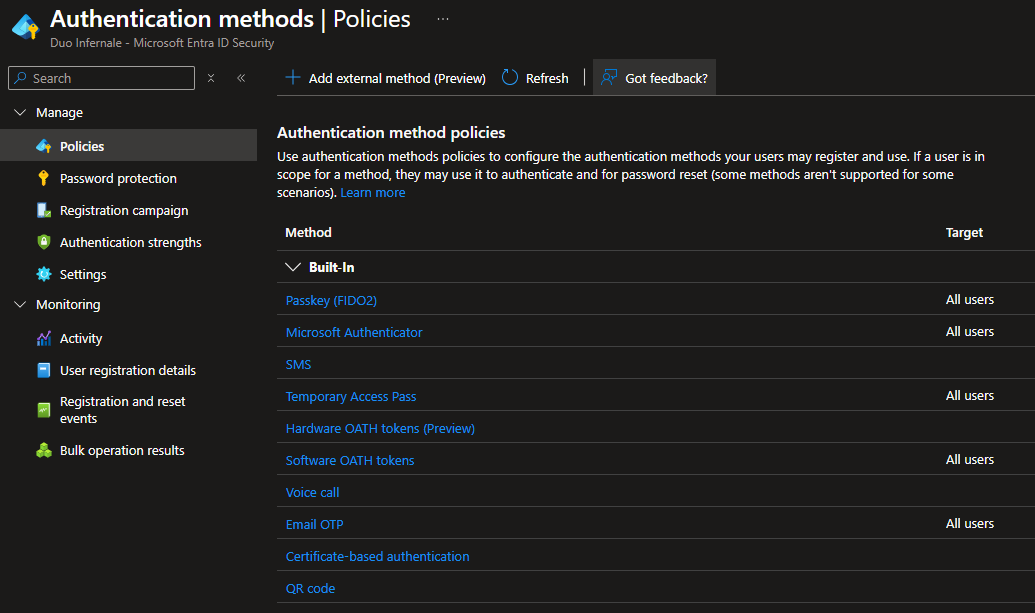
Enable SSPR
- Open the Password reset settings
- Go to Entra ID → Password reset.
- Enable SSPR for your target users (pilot) or for all
- Under Properties set “Self‑service password reset enabled” to All or Selected.
- If you choose Selected, pick the pilot security group you want to start with.
- If you choose All, make sure everyone has already configured authentication methods. Otherwise, users will be required to set them up the first time they sign in to any Microsoft cloud service, if configured later in this guide.
- Click Save.


Choose SSPR Authentication Methods
- Open Authentication methods.
- Set the number of methods required to reset a password.
- Personally I find it more convenient to use only one method to reset a password. Of course, using two methods is always better from a security perspective.
- Furthermore, you can still configure “Security questions” as an optional authentication policy. This is managed through the SSPR portal rather than via the centralized Authentication Methods policy.
- Save changes.

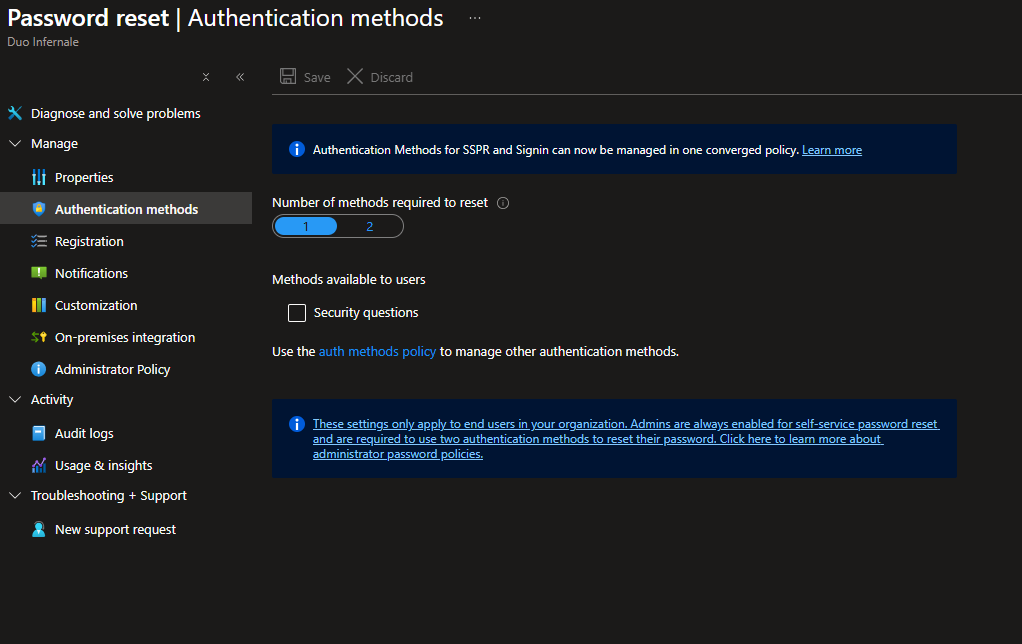
Configure Registration Behavior
- Open Registration.
- Require users to register and force registration at their next sign‑in. Set the reconfirmation cadence to match your conditional access reauthentication interval (for example, the same number of days).
- Note: Make sure everyone has already configured authentication methods. Otherwise, users will be required to set them up the first time they sign in to any Microsoft cloud service.
- Click Save.

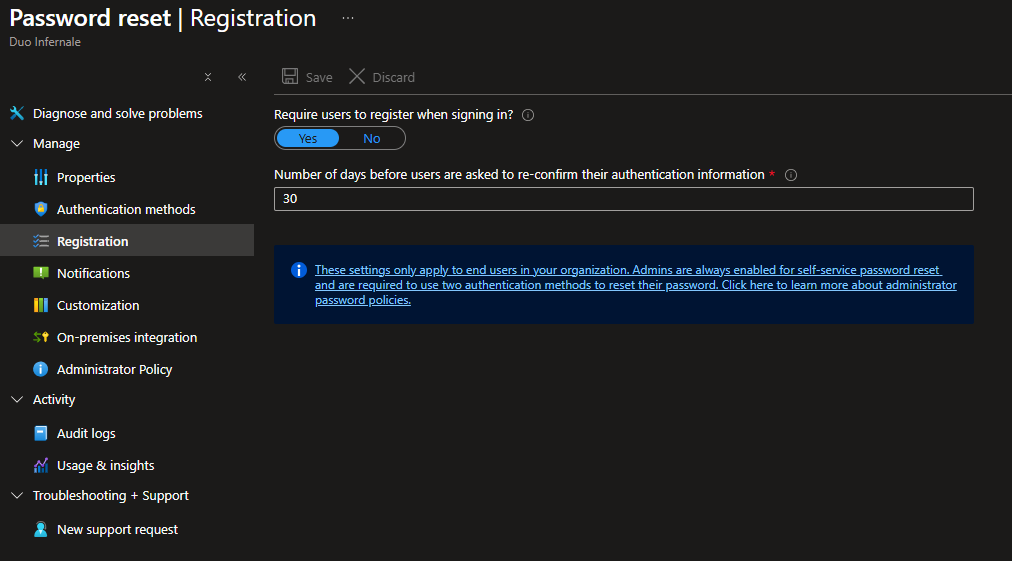
Set Up Notifications
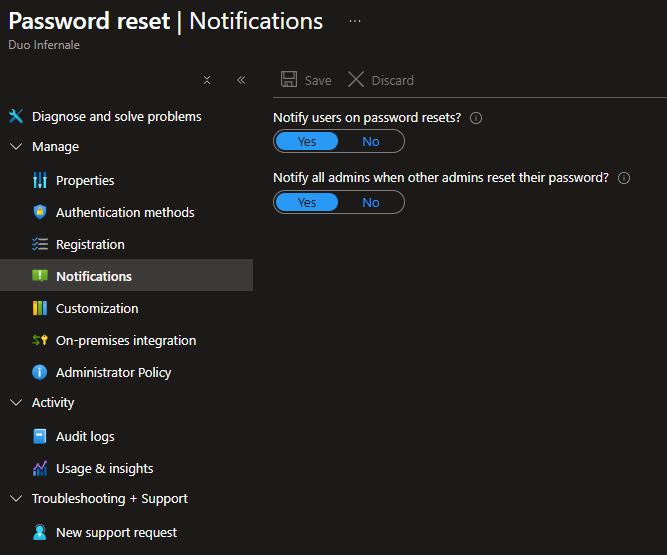
- Open Notifications and enable “Notify users on password reset” and “Notify all admins when other admins reset their passwords” as appropriate.
- With that configuration, the user receives an email after resetting his password. If an administrator resets his password, all global administrators receive an email notification.
- Save after each change.

Set Up Customization
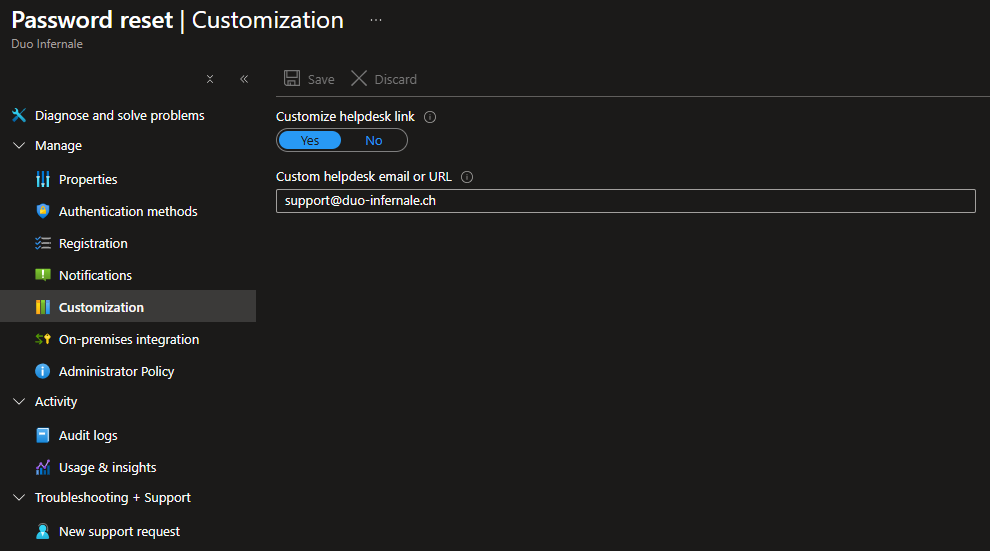
- Open Customization.
- Add a customized helpdesk link, so users can contact support if they cannot reset their password.
- Click Save

Check On‑Premises Integration Status
- Open On‑premises integration to confirm whether writeback shows as available/connected.
- Note: Actually enabling writeback is done in Entra ID Connect. This page lets you verify the connector/agent status.
- Check the option for “Allow users to unlock accounts without resetting their password” to Yes.
- Click Save


Verify Admin Protection Behavior
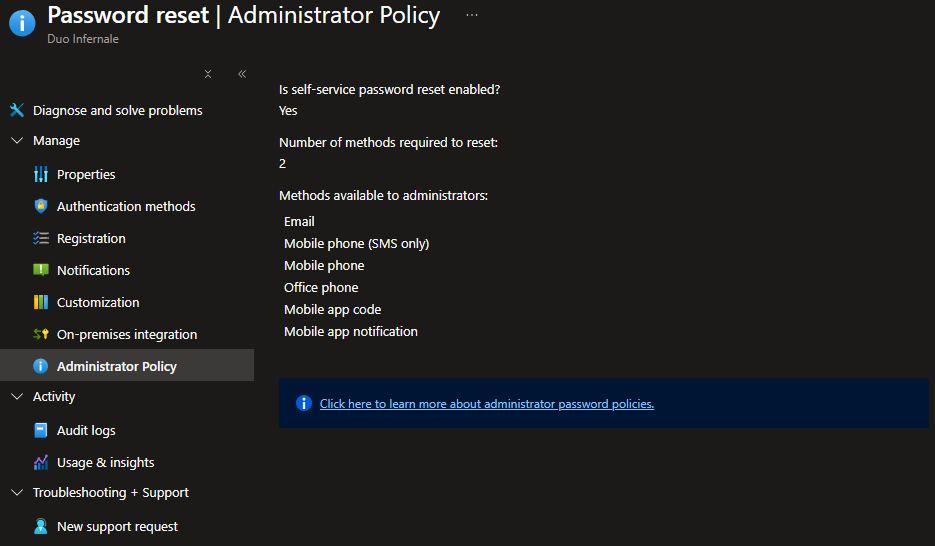
- Review the built‑in admin policy note shown in the portal. No extra toggle is required here, unless you intend to disable SSPR for admins via Graph/PowerShell.

Test And Verify SSPR Setup
- Test with a pilot user
- Ask a pilot user from your selected group (or create a test account) to go to https://aka.ms/sspr and run the reset flow. Confirm registration, chosen authentication methods, notifications, and (if applicable) that writeback is reflected on‑premises (or that the portal shows writeback failure messages when the on‑premise agent is down).
- Also test the password reset for an administrator account.
- Rollout and monitor
- After testing, adjust the “Properties” setting from Selected to All if you’re ready to roll SSPR out to everyone.
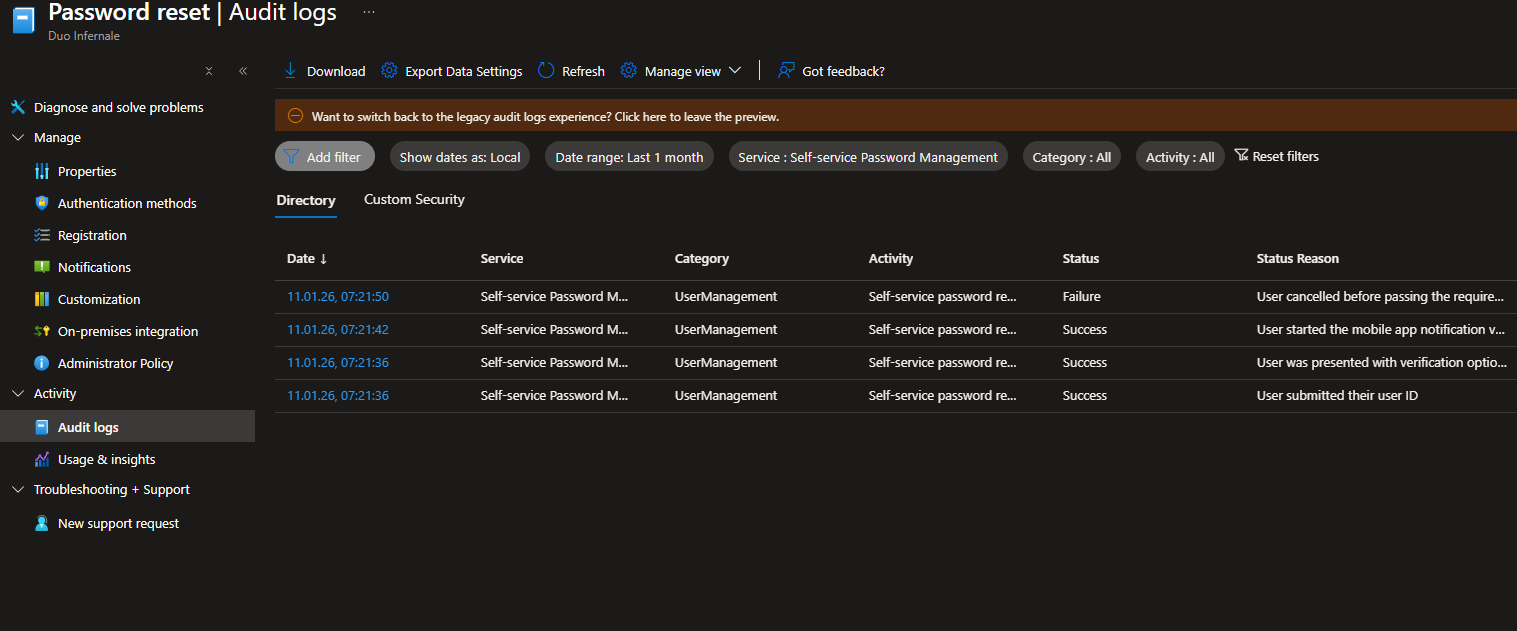
- Monitor password reset activity and audit logs in the portal for registration and reset events.
Conclusion
Sources
- Microsoft Learn: How it works: Microsoft Entra self-service password reset
- Microsoft Learn: Licensing requirements for Microsoft Entra self-service password reset
- Microsoft Learn: Administrator reset policy differences
- Microsoft Learn: How does self-service password reset writeback work in Microsoft Entra ID?