
Microsoft has announced centralized RDP Shortpath management as generally available (short GA), and this update is now fully rolled out as of January 2026. You can finally configure all RDP Shortpath transport modes (Managed, Public/STUN, and Public/TURN) directly through Microsoft Intune or Group Policy. These settings map to registry‑backed policies, making Shortpath management consistent, scalable, and predictable across Azure Virtual Desktop (short AVD) session hosts and Windows 365 (short W365) Cloud PCs.
Below I’ll break down what changed, why it matters, what you need to check, and exactly how to get ready for this new centralized control plane.
Table of Contents
ToggleCentralized RDP Shortpath Management
RDP Shortpath provides multiple UDP‑based transport options that give users lower latency and more reliable connections:
- Managed networks (Shortpath Managed)
- Public networks using NAT traversal (Shortpath STUN)
- Public networks using relay (Shortpath TURN)
Until now, admins had to configure Shortpath behaviour directly on each session host or rely only on AVD host pool network settings. That created inconsistencies across environments, especially at scale.
With this GA release, all Shortpath modes can now be configured centrally via Intune or Group Policy. These policies write directly to registry‑backed configurations on the session host or Cloud PC. Once applied, the host reliably honours the allowed or disallowed Shortpath modes. This gives organizations unified control across their entire AVD or W365 environment.
Summary Of The Change And Why It Matters
The key change is, that Shortpath transport modes can now be centrally configured using modern management tools, like Intune or GPOs, you already use for Windows configuration.
Why this matters:
- Stronger policy‑driven governance.
- Predictable and consistent Shortpath behaviour.
- No more manual per‑host changes or “scripting registry keys”.
- Additional host‑level control for AVD on top of existing host pool network settings.
- Deterministic outcomes when multiple Shortpath options are available.
RDP Shortpath thrives when all modes are enabled, because the client can automatically pick the best path. But some organizations demand tighter control. For example, disabling STUN traversal, so connections always use TURN’s controlled egress. This release finally gives admins that control without having to touch each individual session host in their environment.
Platform & Prerequisites
Before relying on centralized Shortpath policies, ensure:
- Your AVD session hosts or W365 Cloud PCs run supported OS builds.
- Network prerequisites for each Shortpath mode are still met (UDP, STUN/TURN endpoints, firewall rules, etc.).
- You can restart session hosts or Cloud PCs after policy application. This is required, for changes to take effect.
For Azure Virtual Desktop specifically:
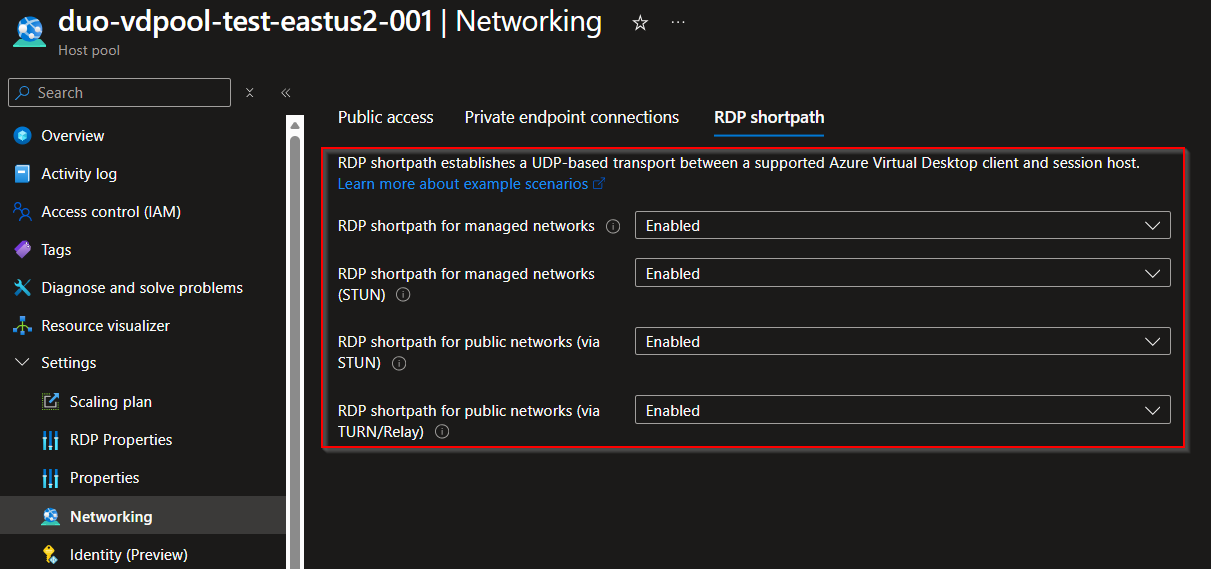
- Intune or GPO Shortpath policies apply in addition to host pool settings.
- When both are defined, the session‑host policy takes precedence. This layered model prevents ambiguous behaviour and gives you the final say at the host level.
How To Prepare (Do This Now)
To ensure your environment benefits from centralized configuration, review and complete these steps:
- Decide which Shortpath modes your organization wants to allow (my recommendation: keep all three enabled for best performance).
- Update your Intune or GPO policies to include the new RDP Shortpath administrative template settings.
- For AVD environments, review your host pool Shortpath settings to ensure they align with your new policy configuration.
- Confirm that UDP egress paths are open and optimized, as policies cannot override physical network requirements.
- Validate STUN and TURN reachability from corporate sites, branch offices, and VPN egress points.
- Restart AVD session hosts and Cloud PCs after the policies have been applied.
How To Configure Using Intune
-
Sign in to the Intune admin center using an account that has at least the Intune Administrator role in Entra ID.
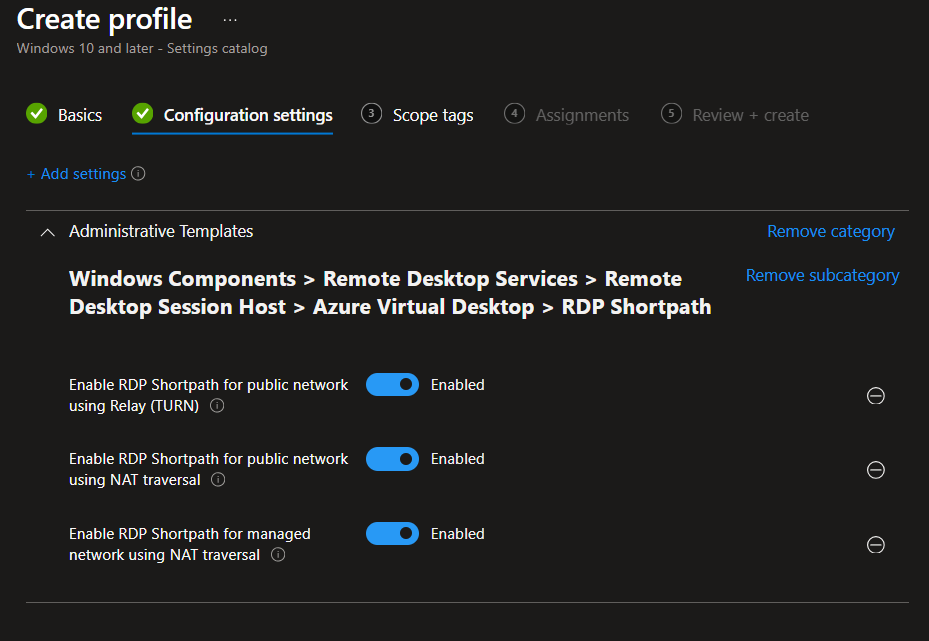
- Create or edit a configuration profile for Windows 10/11 with Settings Catalog.
- Navigate to Administrative templates → Windows Components → Remote Desktop Services → Remote Desktop Session Host → Azure Virtual Desktop → RDP Shortpath
- Enable or disable each Shortpath type:
- Enable RDP Shortpath for public network using Relay (TURN)
- Enable RDP Shortpath for public network using NAT traversal
- Enable RDP Shortpath for managed network using NAT traversal
- Assign the profile to the device groups hosting AVD or W365 sessions.
- Restart hosts after policy application.
How To Configure Using Group Policy
- Add the Azure Virtual Desktop administrative template to your domain.
- Using Group Policy Management, edit or create a GPO targeting your session hosts.
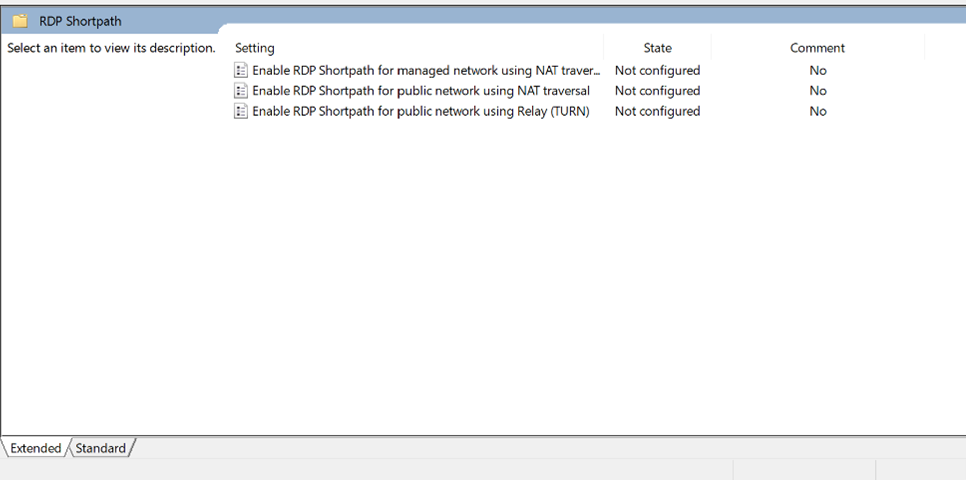
- Navigate to Computer Configuration → Policies > Administrative Templates → Windows Components → Remote Desktop Services → Remote Desktop Session Host → Azure Virtual Desktop → RDP Shortpath
- Enable or disable each Shortpath type based on your organizational policy.
- Apply the GPO and restart targeted hosts.
Verify And Validate
To confirm that the settings are active, start by reviewing the effective registry values on the session host under the RDP Shortpath policy keys. Then check AVD Insights for Shortpath connection data. Finally, validate behaviour from real endpoints to ensure the expected Shortpath modes are being attempted.