
Single sign-on (short SSO) for Azure Virtual Desktop (short AVD) using Microsoft Entra ID (short EID) makes the sign-in experience seamless. Users sign in to a remote Windows client with an Entra token, which enables passwordless options and federation with external identity providers. In short, SSO gives a smoother user experience and cleaner access to Entra resources inside the session. In this post I’ll walk you through what to do, what to watch for, and how to validate the setup for your AVD environment.
Prerequisites
If you want to enable SSO for your AVD environment, the following prerequisites have to be met.
- Microsoft Entra role (least to highest privilege):
- Application Administrator
- Cloud Application Administrator
- Global Administrator
- Session host join type:
- Session hosts must be Entra joined or Entra hybrid joined.
- Active Directory Domain Service only or Entra Domain Services only hosts are not supported.
- If hosts and user accounts are in different Active Directory domains, you need a two-way trust.
- Session host OS:
- Windows 11 Enterprise single or multi-session with the 2022-10 Cumulative Updates for Windows 11 (KB5018418) or later installed.
- Windows Server 2022 with the 2022-10 Cumulative Update for Microsoft server operating system (KB5018421) or later installed.
- Windows Server 2025
- Supported client apps for connecting:
- Windows App:
- All versions of Windows App on Windows. The local device doesn’t have to be joined to a domain or to Entra.
- macOS version 10.9.10 or later.
- iOS/iPadOS version 10.5.2 or later.
- Web browser
- Remote Desktop client (latest on all platforms)
- Windows App:
- Install the Microsoft Graph PowerShell SDK version 2.9.0 or later on your local device or in Azure Cloud Shell.
What You Need To Do
In this chapter, you learn what you need to do to use SSO with your AVD environment.
Step 1 — Configure Your Host Pool To Enable SSO
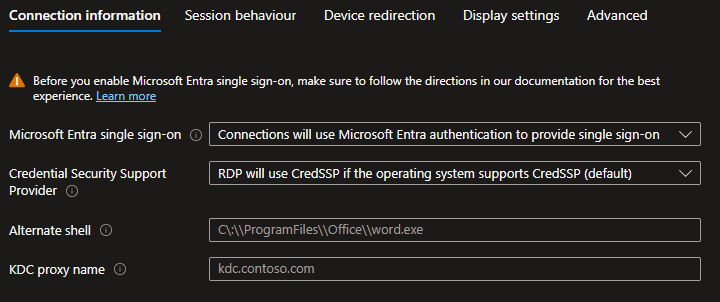
In the Azure portal, edit your host pool RDP properties and set Microsoft Entra single sign-on to “Connections will use Microsoft Entra authentication to provide single sign-on”.
Step 2 — Hide The Consent Prompt Dialog
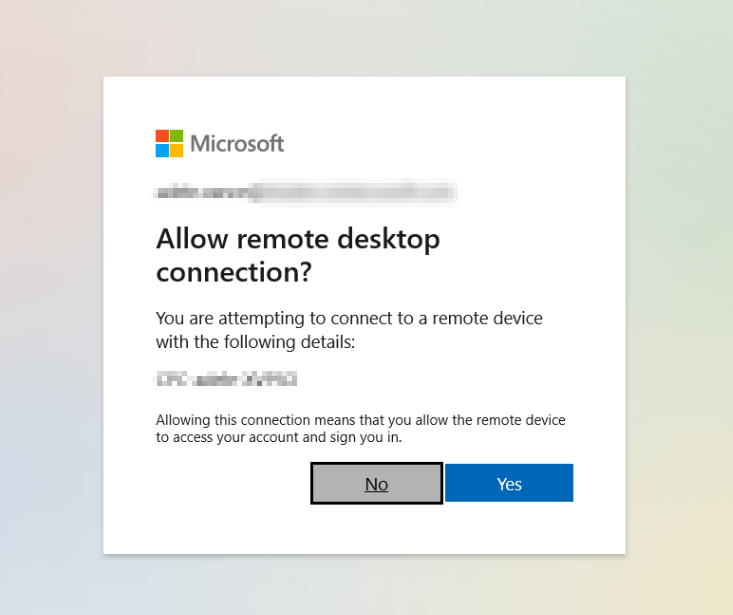
By default users see a consent prompt when connecting to a new session host. You can hide it by adding your session host device groups to the targetDeviceGroup property on the Windows Cloud Login service principal.
- Create a dynamic device group in Entra to include your session hosts (dynamic groups are recommended). Note, dynamic membership requires Entra P1 or Intune for Education licences.
- Add the group(s) to the service principal using Graph PowerShell:
$targetDeviceGroup= New-Object -TypeName Microsoft.Graph.PowerShell.Models.MicrosoftGraphTargetDeviceGroup
$targetDeviceGroup.Id = "<Group object ID>"
$targetDeviceGroup.DisplayName = "<Group display name>
$WCLspID = "270efc09-cd0d-444b-a71f-39af4910ec45"
New-MgServicePrincipalRemoteDesktopSecurityConfigurationTargetDeviceGroup -ServicePrincipalId $WCLspId -BodyParameter $targetDeviceGroup
Tip: You can add up to 10 groups. To remove a group:
Remove-MgServicePrincipalRemoteDesktopSecurityConfigurationTargetDeviceGroup -ServicePrincipalId $WCLspId -TargetDeviceGroupId "<Group object ID>"
Step 3 — Create A Kerberos Server Object When Required
You must create a Kerberos server object in these cases:
- Session hosts are Entra hybrid joined, because Kerberos is needed to authenticate to domain controllers.
- Session hosts are Entra joined, but your environment still has AD domain controllers, and you need access to on-premise resources such as SMB shares or Windows integrated auth.
Important: If you enable SSO on Entra hybrid joined hosts without a Kerberos server object, connections may fail or fall back to standard authentication prompts. Create the Kerberos server object first, then test again.
Step 4 — Review Conditional Access Policies
If you have conditional access policies (MFA, sign-in frequency, device controls) that apply to AVD, review and adjust them so users get the experience you want. Remember:
- Session lock behavioir affects passwordless flows, see the chapter below.
- Conditional access is re-evaluated when a user reconnects to a disconnected session.
Session Lock Behaviour And Why It Matters
When SSO via Entra is enabled, you can choose whether a locked remote session shows the remote lock screen or disconnects the session. Default is disconnect, and this is often the best choice because:
- It keeps the sign-in experience consistent with Entra.
- It supports passwordless methods like passkeys and FIDO2.
- It allows conditional access to be re-evaluated on reconnect, which can force MFA if required.
If you need remote lock screen behaviour instead, follow the guidance in Microsoft Learn to configure session lock behaviour. Be aware, switching to the remote lock screen effectively disables true Entra SSO for unlock. Passwordless methods (FIDO2, passkeys) won’t work and users may be prompted for credentials.
Step 5 — Enable Microsoft Entra Authentication For RDP
If you’ve checked everything else and SSO still won’t kick in, there is still one thing to check for. You must allow Entra authentication for Windows so RDP tokens can be issued. This is done by setting the isRemoteDesktopProtocolEnabled property to true on the Windows Cloud Login service principal (AppId: 270efc09-cd0d-444b-a71f-39af4910ec45).
PowerShell steps (run in Azure Cloud Shell or locally)
-
Install and import the Graph modules, then connect:
Import-Module Microsoft.Graph.Authentication Import-Module Microsoft.Graph.Applications Connect-MgGraph -Scopes "Application.Read.All","Application-RemoteDesktopConfig.ReadWrite.All"
-
Get the service principal object id:
$WCLspId = (Get-MgServicePrincipal -Filter "AppId eq '270efc09-cd0d-444b-a71f-39af4910ec45'").Id
-
Enable RDP tokens:
If ((Get-MgServicePrincipalRemoteDesktopSecurityConfiguration -ServicePrincipalId WCLspId)−neWCLspId) -ne true) { Update-MgServicePrincipalRemoteDesktopSecurityConfiguration -ServicePrincipalId $WCLspId -IsRemoteDesktopProtocolEnabled }
-
Verify; Expected output should show IsRemoteDesktopProtocolEnabled True:
Get-MgServicePrincipalRemoteDesktopSecurityConfiguration -ServicePrincipalId $WCLspId
Validation Checklist
Here is a short validation checklist, after you have configured SSO for AVD, and want to test it:
- Connect with a supported client and confirm SSO is used. Test passwordless sign-in methods.
- Confirm the new Entra app is in use (sign-in logs in Entra) and that consent prompt is configured.
- Lock a session and verify disconnect or remote lock behaviour.
- Monitor sign-in logs in Entra for conditional access and authentication flow details.
- Test access to on-premise resources that use Kerberos or SMB (if applicable).
Troubleshooting Tips
Here are some troubleshooting tips I personally recommend and also encountered:
- If SSO is not used, verify session hosts are Entra joined or Entra hybrid joined and meet OS update requirements.
- If users see repeated consent prompts, when connecting to a session host, check targetDeviceGroup configuration and dynamic group membership. Large tenants can take up to 24 hours for dynamic group updates.
- If user fail to authenticate to on-premise resources, verify the Kerberos server object exists and is correctly configured (Cloud Kerberos Trust).
- Confirm the Graph PowerShell steps completed without errors, and that IsRemoteDesktopProtocolEnabled is True.
Conclusion
SSO with Microsoft Entra ID delivers a much better experience for AVD users, especially when paired with passwordless authentication. Start with a validation host pool or pilot group, test conditional access scenarios, and validate access to any on-prem resources before rolling out broadly. Document your changes, and include a rollback plan in case you need to revert quickly. Especially, hiding the consent prompt when connecting to a AVD session host is a must for all your environments. This is a game changer!