
Microsoft announced upcoming RemoteApp enhancements for Azure Virtual Desktop (short AVD) RemoteApps and Windows 365 (short W365) Cloud Apps. The goal is to deliver a more native app experience for users connecting to published RemoteApps and Cloud Apps. Key improvements include improved Windows Snap and full‑screen behavior, better multi‑monitor handling, and refined visuals such as borders, shadows, and tighter theme integration. These improvements are available in public preview and must be manually enabled during the preview.
Below I’ll walk through what’s changing, why it matters, who and what is supported, and exactly what to do to pilot and test the preview.
IMPORTANT: This feature is in PREVIEW. Read the Supplemental terms for Microsoft Azure Previews before you test the feature in a productive environment.
What’s Changing With RemoteAppV2
- These changes are delivered as a new remote session type (RemoteAppV2) and require an opt‑in during the public preview. When this feature is general available, they’ll be enabled by default on supported systems.
- RemoteAppV2 behaviour provides improved Windows Snap and full‑screen support for RemoteApps and Cloud Apps.
- Better multi‑monitor handling (window placement and scaling).
- Window borders, shadows, and theme integration for a more native feel (visual polish).
Platform & Prerequisites
To use the RemoteApp enhancements, ensure you have supported session hosts/Cloud PCs, supported client devices, and that the SxS Network Stack prerequisite is installed.
Minimum required OS updates for session hosts or Cloud PCs:
- Windows 11 Enterprise, version 24H2 — 26100.7309 (KB5070311)
- Windows 11 Enterprise, version 25H2 — 26200.7309 (KB5070311)
- Windows 11 Enterprise, version 25H2 (Preview) — 26220.7051 (KB5067115)
- Windows 11 Enterprise multi‑session, version 24H2 — 26100.7309 (KB5070311)
- Windows 11 Enterprise multi‑session, version 25H2 — 26200.7309 (KB5070311)
- Windows 11 Enterprise multi‑session, version 25H2 (Preview) — 26220.7051 (KB5067115)
Additional requirement for session hosts or Cloud PCs:
- SxS Network Stack version 1.0.2507.25750 or newer installed on session hosts or Cloud PCs.
Local device (connecting client) OS:
- Windows 11, version 24H2 or 25H2.
Client software (minimum versions):
- Windows App for Windows: 2.0.864.0
- Remote Desktop client for Windows: 1.2.6760.0
What’s Not Supported
The preview does not yet support the following:
- Certain enhancements aren’t applied to Microsoft Edge and Chrome RemoteApps.
- Non‑Windows client platforms are not in scope for the preview.
Enable RemoteApp Enhancements (Preview)
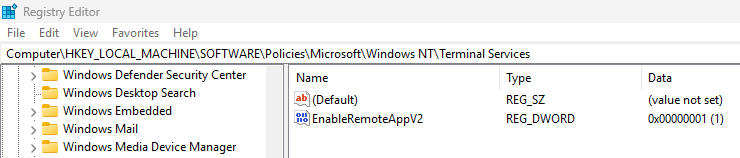
During preview, you must enable the feature on each session host or Cloud PC. You can deploy the registry setting via Group Policy or Intune (no built-in setting) via a script.
Required registry enablement:
- Key: HKLM\Software\Policies\Microsoft\Windows NT\Terminal Services
- Type: REG_DWORD
- Value name: EnableRemoteAppV2
- Value data: 1
Optional: Validation environment (AVD)
- Configure a validation host pool in AVD to receive the latest fixes and updates for testing. Because the preview is rolled out gradually, the validation pool lets you test immediately even if production is still waiting for the rollout.
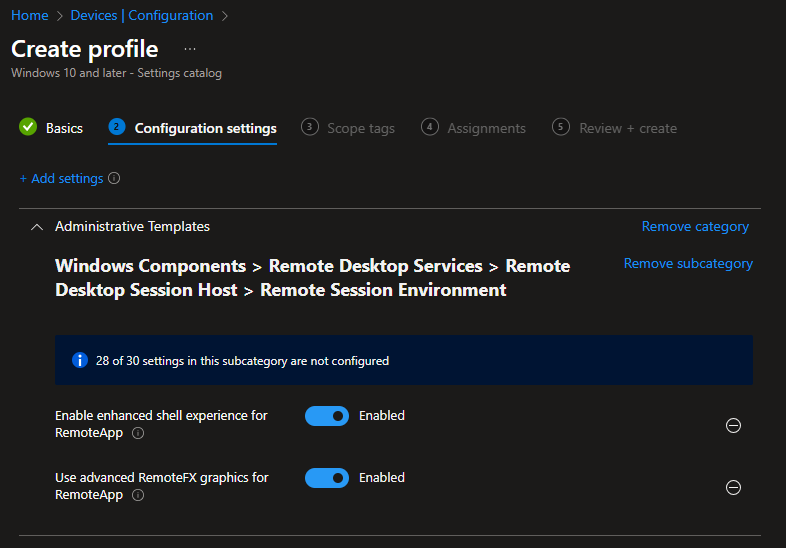
Ensure these policies are not disabled on your session hosts or Cloud PCs:
- Local Computer Policy → Computer Configuration → Administrative Templates → Windows Components → Remote Desktop Services → Remote Desktop Session Host → Remote Session Environment → Use advanced RemoteFX graphics for RemoteApp
- Local Computer Policy → Computer Configuration → Administrative Templates → Windows Components → Remote Desktop Services → Remote Desktop Session Host → Remote Session Environment → Enable enhanced shell experience for RemoteApp
Or you can manage those settings via Intune (Configuration profile / Settings catalog):
Reboot the session hosts or Cloud PCs after applying the registry change so the RemoteAppV2 behavior takes effect.
Verify RemoteApp Enhancements Are Working
- From a supported client, connect to a published RemoteApp or Cloud App.
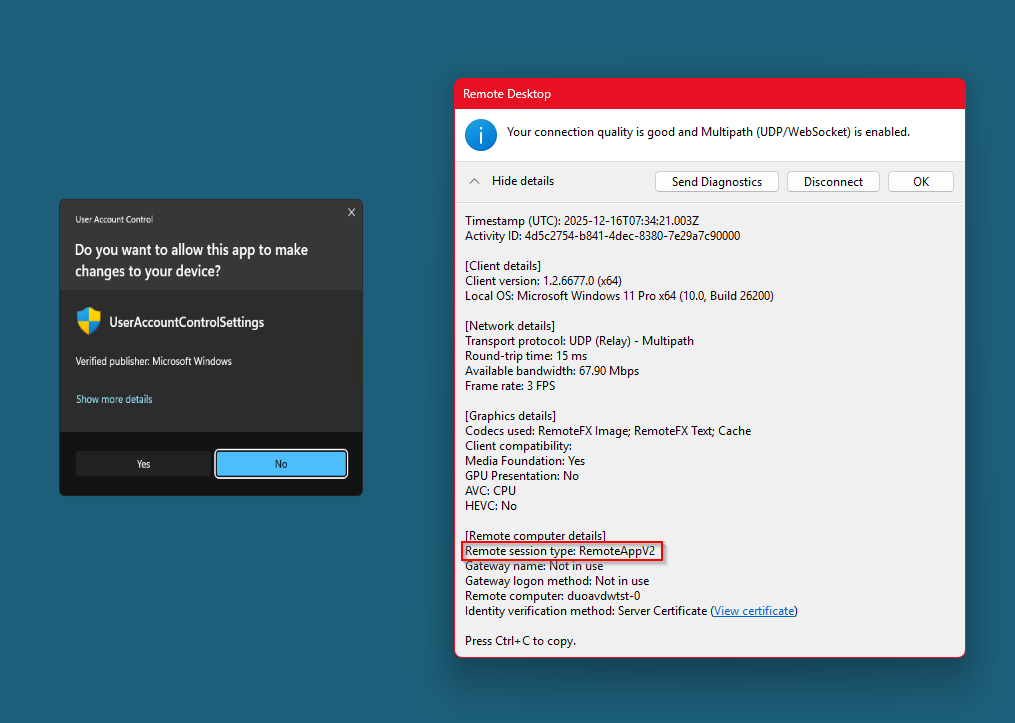
- Open the Connection Information dialog:
- Windows App: Press Ctrl‑Alt‑End to bring up the Windows Security dialog, then right‑click its title bar and select Connection information. Or just do something you need elevated privileges for (install an application).
- Remote Desktop client: Right‑click the Remote Desktop icon in the system tray, hover over the entry for your active connection, and select Connection information.
- Select See details and check “Remote session type”:
- If it shows RemoteAppV2, the enhancements are active.
- If it displays another value, confirm hosts/clients meet prerequisites and that the EnableRemoteAppV2 registry value is present.
Known Issues & Limitations (Preview)
Personally I’ve not experianced those known issues & limitations yet. But Microsoft states them in their Learn article, thus it could be an obsticle for some.
- Some enhancements don’t apply to Microsoft Edge and Chrome RemoteApps.
- System notifications from RemoteApps can be displayed too low on the screen.
- Narrowing a RemoteApp window that is already at minimum width can sometimes move the window instead.
- The Snap Flyout that appears when hovering over a RemoteApp window’s maximize button may not correctly honour display scale on secondary displays.
- Closing a RemoteApp window can sometimes change the foreground window unexpectedly.
- Parts of the File Explorer RemoteApp can occasionally be unresponsive.
Conclusion
RemoteApp enhancements (RemoteAppV2) deliver a more native, modern experience for AVD RemoteApps and Windows 365 Cloud Apps by improving snap/full‑screen behaviour, multi‑monitor handling, and visual appearance. Because this is a public preview, you must opt in on session hosts/Cloud PCs today. Test in a validation environment, deploy the registry setting via Intune or GPOs, verify the session type is RemoteAppV2, and pilot the new feature. When these changes reach GA they will be enabled by default on supported systems.