
Microsoft announced Windows Cloud Keyboard Input Protection in November 2025 to go in Preview on the 25th of November 2025. And now since the 10th of December finally available in public preview. This feature is purpose‑built to protect keystrokes for Azure Virtual Desktop (short AVD) session hosts and Windows 365 (short W365) Cloud PCs. Below I’ll walk through what it does, why it matters, who and what is supported, and exactly what to do to pilot and deploy it.
IMPORTANT: This feature is in PREVIEW. Read the Supplemental terms for Microsoft Azure Previews before you test the feature in a productive environment.
Close The Endpoint Gap With Keystroke Shield
How It Works
This is a short overview of how this new feature works:
- A kernel driver installed by an MSI encrypts keyboard input on the endpoint.
- Encrypted input is sent to AVD session host or Cloud PC.
- Only the remote AVD session host or Cloud PC can decrypt the keystrokes.
- If the MSI is missing or the device is unsupported, the connection is blocked, and an error is shown.
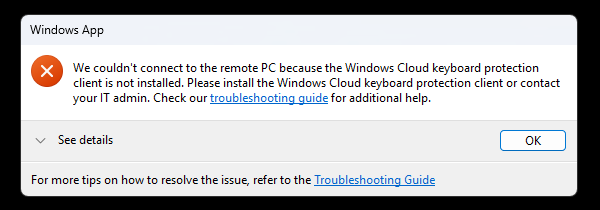
Platform & Prerequisites
Supported endpoints
- Physical Windows 11 devices (24H2 and above) only.
- Windows x64 and Windows ARM 64.
- Device must have TPM 2.0.
- Windows App must be 2.0.704.0 or later.
Supported AVD session hosts and Cloud PCs
- Session hosts must run supported Microsoft Windows client OS (Windows 11 24H2 and above) versions for AVD and W365.
- Environments managed via Group Policies.
- Workaround for cloud-only environments.
Not supported
- macOS, iOS, Android, and web clients.
- Virtual machines (short VMs) and Windows 365 Link devices.
- Any Windows device that does not have the MSI installed.
Set Up The Windows Cloud IO Protect Feature
You can automate the MSI via Intune or your preferred software distribution tool. Example silent, no‑restart commands:
msiexec.exe /i wcio_protection_driver_installer_x64_0.0.693.msi /q /norestart
msiexec.exe /x {DA3C949B-037E-45EB-AE2D-9057BB3CA75D} /q /norestart
Remember to schedule a restart after deployment, so the driver is loaded.
How To Enable On AVD Session Hosts And Cloud PCs
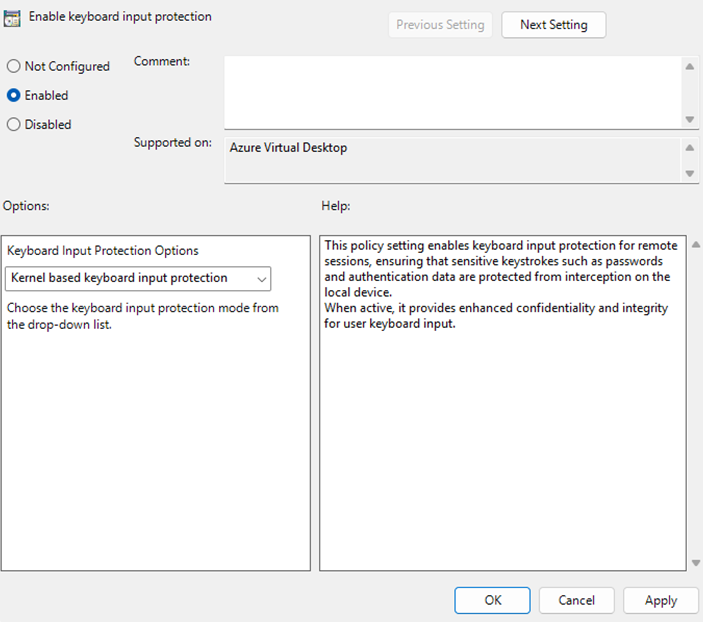
Out of the box, this feature is supported via Group Policy for hybrid (AD‑joined) environments. To enable it there, add the Azure Virtual Desktop administrative template to your domain, open Group Policy Management, and create or edit a policy that targets the session hosts. Navigate to Computer Configuration → Policies → Administrative Templates → Windows Components → Remote Desktop Services → Remote Desktop Session Host → Azure Virtual Desktop and enable the policy setting “Enable Keyboard Input Protection.” Apply the GPO to the session hosts and restart them for the setting to take effect.
For Entra‑joined customers, the administrative template isn’t available yet. Microsoft documents a supported registry workaround you can use today (and which you can automate with an Intune script). On each session host, open Registry Editor and create the DWORD fWCIOKeyboardInputProtection with a value of 1 at: HKEY_LOCAL_MACHINE\SOFTWARE\Policies\Microsoft\Windows NT\Terminal Services
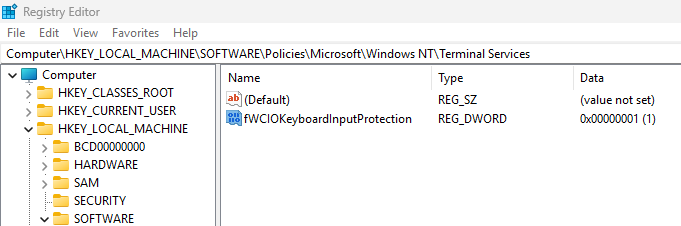
Then restart the session host. When native Entra policy support becomes available you can replace the registry script with a proper MDM policy.
How This Fits Into Your Security Posture
Windows Cloud Keyboard Input Protection complements Endpoint Detection and Response (short EDR), device compliance, conditional access, and least‑privilege controls. It’s not a replacement for endpoint security. It’s another, powerful layer that protects input confidentiality end‑to‑end. Use it where input confidentiality matters most, for example remote users, BYOD scenarios, regulated workloads, and any “high‑risk users”.
Conclusion
Windows Cloud Keyboard Input Protection shifts input protection closer to the endpoint hardware. By encrypting keystrokes in the kernel and decrypting them only inside the AVD session host or Cloud PC, it blocks a common route attackers use to harvest credentials and sensitive data. It’s still a preview feature, so test carefully in productive environments. When implemented correctly, it significantly strengthens endpoint‑to‑cloud security for AVD and W365 users.