
Initial Situation
Here’s a brief overview of my environment and the initial situation so you have context. All customer names have been changed to protect privacy.
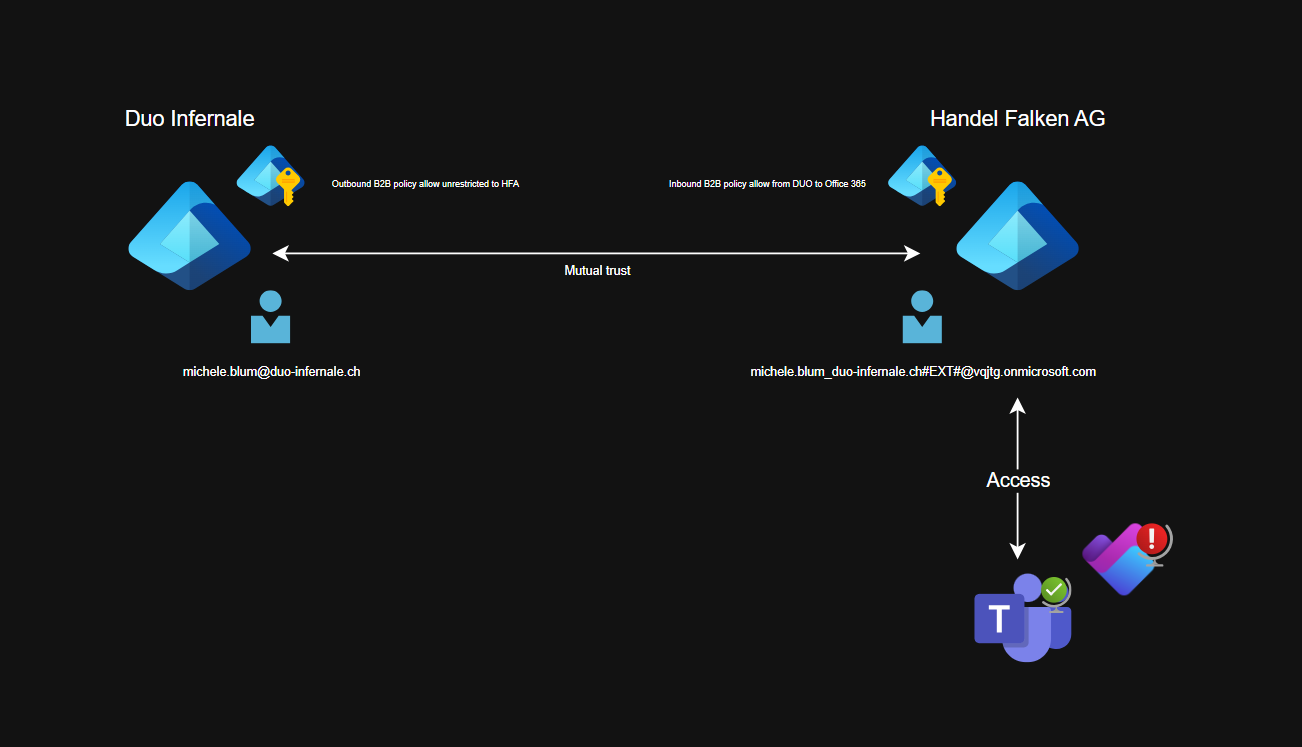
- Source tenant: Duo Infernale (short DUO). Destination tenant: Handel Falken AG (short HFA).
- DUO B2B collaboration outbound settings allowed access to HFA without restrictions.
- HFA B2B collaboration inbound settings allowed all users of DUO access to Office 365 (enterprise app).
- HFA trusts DUO’s MFA (inbound cross‑tenant configuration).
- HFA enforces internet‑facing conditional access policies. For example, MFA for all guests.
- SharePoint/OneDrive sharing is strict: only existing guests can access data. Some sites are restricted for guests.
- The guest exists in HFA’s directory and can open the Team’s SharePoint site and documents.
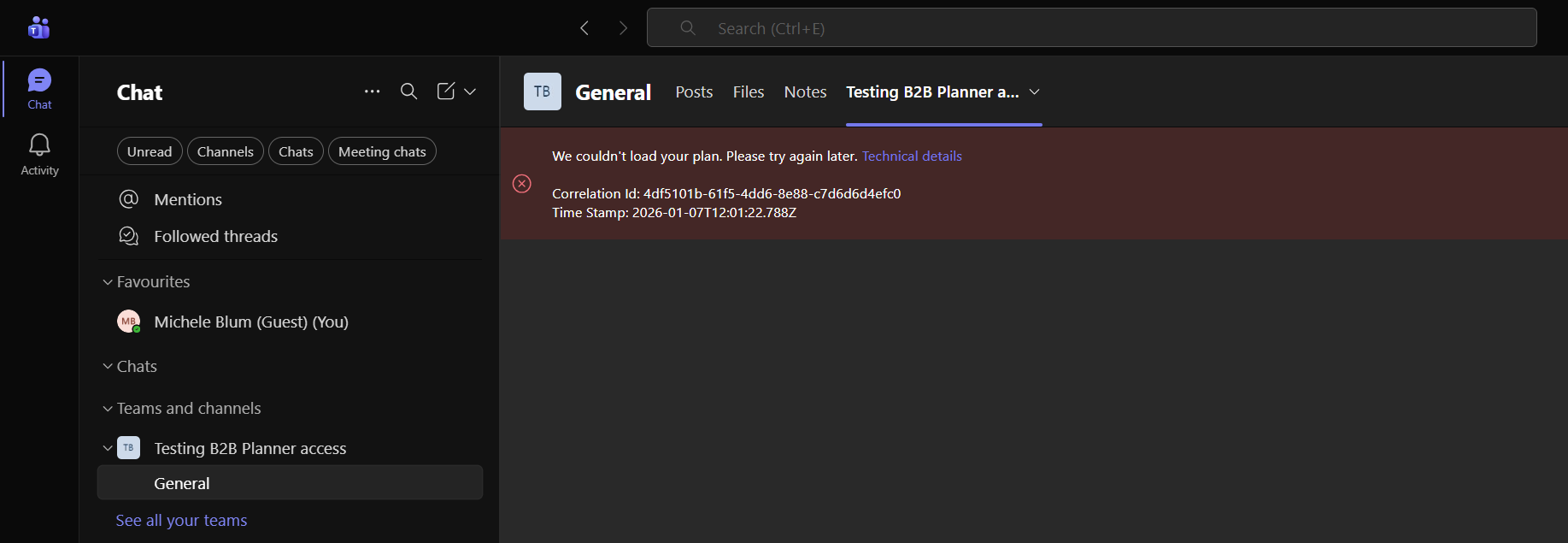
- A Planner is added as a channel tab (like in the picture above).
What I Figured Out After Googling And Testing
Here are the key findings I collected while researching the issue. They ultimately pointed me in the right direction and guided my troubleshooting.
- Planner is built on Microsoft 365 groups. A guest is not a true member of the Microsoft 365 group.
- A guest can be given permission to the SharePoint site or to specific files/folders so they can open documents in the Teams, but that does not necessarily make them a member of the Microsoft 365 group that underpins the Team. Planner requires membership in that Microsoft 365 group. Simple SharePoint file sharing alone is often not enough.
- Shared channels do not add members to the Team’s Microsoft 365 group and commonly break Planner for external participants.
- The guest did not accept the group welcome flow (they must click the welcome email’s “Access files” link to finalize their tenant‑scoped guest account and consent).
- Tenant Microsoft 365 Groups guest setting “Let guest group members access group content” is disabled. If disabled, Planner won’t show even if SharePoint files are accessible.
- Guests sometimes land in the wrong Planner tenant context when using the generic Planner URL. A tenant‑specific Planner URL or direct plan link is more reliable.
- Conditional access policies or cross‑tenant app restrictions can block Planner/Graph token issuance even when MFA is trusted.
- A Planner tab in Teams added before correct membership/settings were applied can cache a stale token. Removing and re‑adding the tab often fixes the tab context/token.
Resolution — Step By Step
In this chapter I’ll walk you through, what I did to fix this issue:
- Confirm the guest exists in Entra
- Entra → Users: Guest must appear as user@domain#EXT#… If missing, re‑invite and ensure acceptance.

- Entra → Users: Guest must appear as user@domain#EXT#… If missing, re‑invite and ensure acceptance.
- Ensure Microsoft 365 group membership (the critical bit)
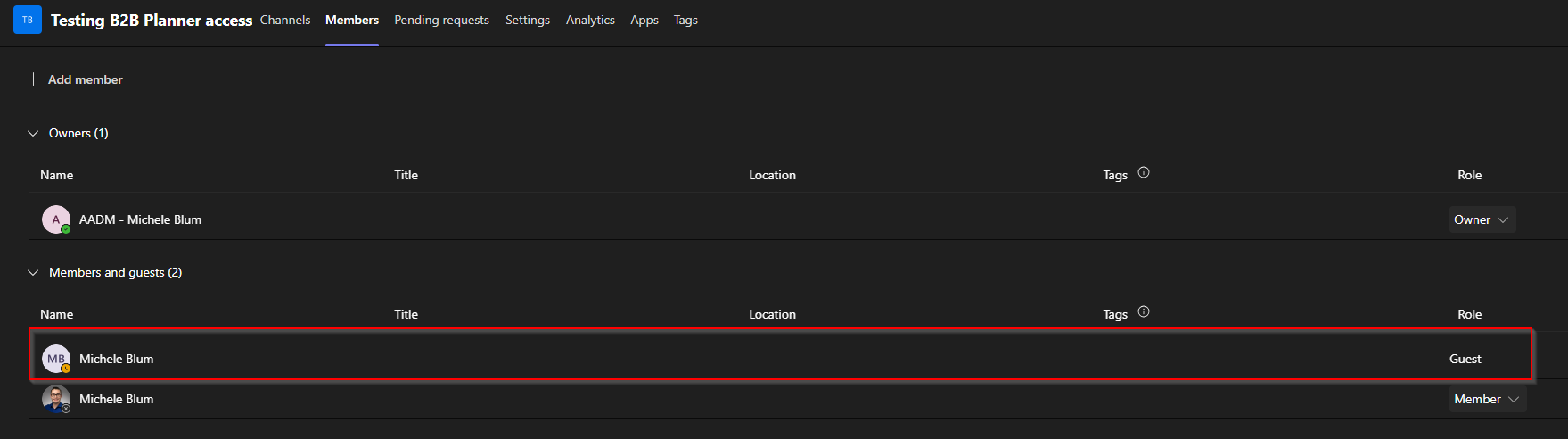
- Teams → Team → More options → Manage team → Members: Add the guest as a member (not just channel guest).

- Teams → Team → More options → Manage team → Members: Add the guest as a member (not just channel guest).
- Have the guest complete the welcome flow
- Ask them to find and click the group welcome email’s “Access files” link (this finalizes the guest object and consent context).
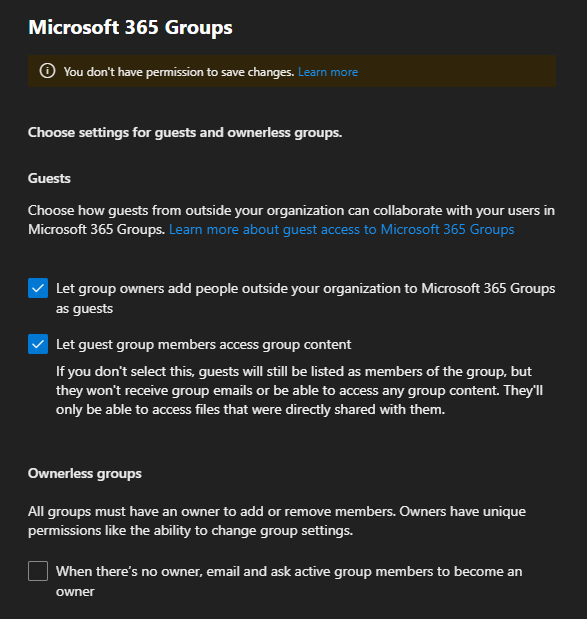
- Confirm tenant-level Microsoft 365 groups guest settings (this did the trick for me 😀 )
- Microsoft 365 admin center → Settings → Org settings → Microsoft 365 Groups
- Ensure both: “Let group owners add people outside your organization to Microsoft 365 Groups as guests” and “Let guest group members access group content” are enabled.

- Check channel type and plan placement
- If the Planner is in a shared channel, either add the guest to the Team’s underlying Microsoft 365 group or move the plan/channel to a standard channel. Shared channels don’t populate the Team’s Microsoft 365 Group and Planner needs membership.
- Test tenant context directly
- Have the guest open: https://planner.cloud.microsoft/<yourorgdomain> or the specific plan URL. If that works, it confirms the Teams tab had incorrect tenant context or a stale token.
- Recreate the Planner tab to reset token/context
- Remove the Planner tab from the channel and add it again after steps above are completed. This forces a fresh context and usually clears the error.

The Last Hope For The Problem
If all the above haven’t brought up the solution, maybe those steps will:
- Review Conditional Access & cross‑tenant access settings
- Azure AD → Security → Conditional Access: Ensure policies do not block Planner/Graph token issuance for guest sessions. Add exceptions or refine rules if needed.
- Entra → External Identities → Cross‑tenant access settings: Verify inbound rules for the partner tenant allow the necessary “Users and groups” and “Applications” access for Planner/Graph.
- Collect evidence if the issue persists
- Copy correlation id + timestamp from the Planner error banner.
- Entra → Sign-ins: Filter by guest UPN and timestamp. Export the logs and look for 401/403 or token failures.
- Use Teams web and browser devtools to capture network/Graph errors.
- Escalate to Microsoft support.
Validation Checklist
- Guest appears in Entra as #EXT# and is a member of the Microsoft 365 group backing the Planner.
- Guest accepted the guest/group invitation.
- Guest can open the Planner tab in Teams and view the board.
- Guest can open the plan via the tenant‑specific Planner URL.
- Entra sign‑in logs show successful Planner/Graph token issuance for the guest account in the destination tenant.
Notes & Limits
Planner guest limitations still apply (for example, guests can’t add other guests to plans). Furthermore, changes in directory membership, especially with dynamic groups, can take time to propagate in large tenants. If you enforce strict conditional access policies or app restrictions, tune those policies for trusted external tenants so Entra ID can issue Planner/Graph tokens and the app works correctly.
Conclusion
This was not a SharePoint sharing or MFA problem, as first thougt from my side. I did the usual checks (added the guest to the Microoft 365 group, confirmed they accepted the welcome email, re‑added the Planner tab), but the single change that actually fixed it for me was enabling the tenant‑level Microsoft 365 groups setting: “Let guest group members access group content” in the Microsoft 365 admin center. That one toggle resolved the blank Planner tab for me.