
Context-based Redirections brings a more granular, policy-driven approach to AVD device redirection. In Public Preview since June 2026, it uses Microsoft Entra authentication context and Conditional Access to dynamically control clipboard, drive, printer and USB redirection based on the user’s session and device trust level.
From static settings to contextual controls
Redirection improves productivity, but it can also increase the risk of data leaving the organization. Clipboard transfers, mapped drives, redirected printers and USB devices may expose sensitive information when users connect from unmanaged or noncompliant devices.
Context-based Redirections helps address this challenge by making redirection behavior dependent on the connection context. A trusted, compliant corporate device can receive broader access, while a BYOD or noncompliant device can be restricted automatically.
How it works
The feature combines three configuration layers:
- Microsoft Entra authentication context
Defines the context used to evaluate a session.
- Conditional Access policyDetermines which users or devices satisfy the required conditions, such as device compliance.
- AVD host pool RDP properties
Maps the authentication context to specific redirection settings.
This approach allows administrators to apply different controls without creating completely separate desktop environments for every security scenario.
Supported redirection types
Context-based Redirections supports:
- Clipboard
- Drive
- Printer
- USB
Each redirection can be configured according to the organization’s security and productivity requirements.
Configuration overview
Create an authentication context
In Microsoft Entra Conditional Access:
- Sign in to Microsoft Entra admin center
- Open Entra ID > Conditional Access > Authentication contexts
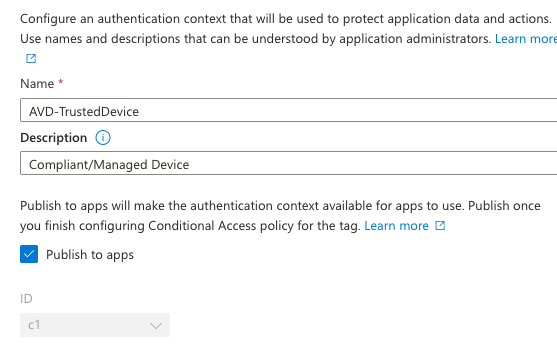
- Create a new authentication context
- Add a name and description
- Enable Publish to apps
- Save the selected authentication context ID
Create a Conditional Access policy
Create a policy that targets the authentication context. For example, the policy can require the connecting device to be marked as compliant.
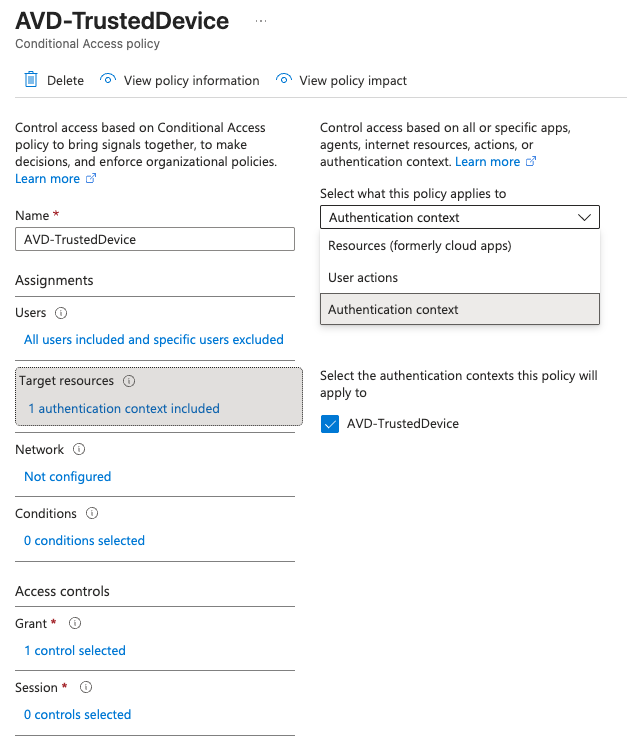
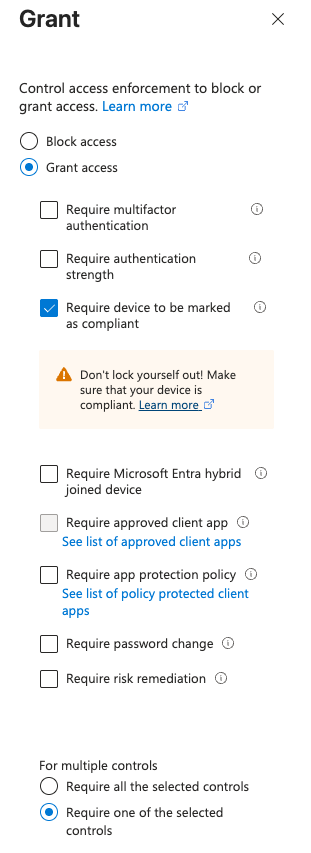
The policy can be assigned to selected users or groups and enabled once the configuration has been validated.
Configure the AVD host pool
- Open the required AVD host pool
- Select RDP Properties
- Open the Device redirection tab
- Select Dynamically configure using authentication context for the required redirection
- Select the authentication context and save the configuration
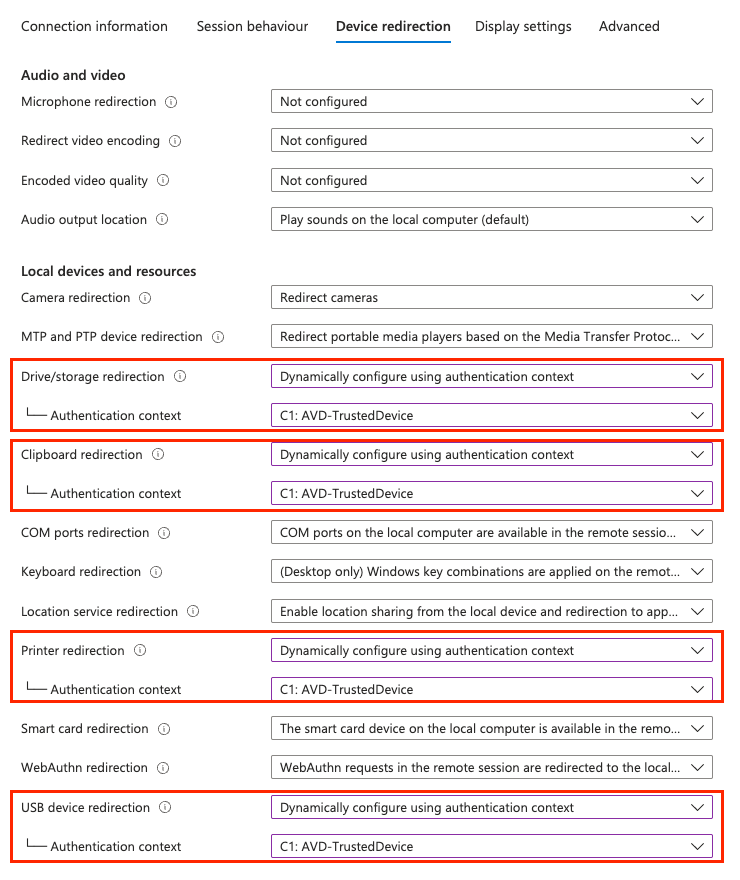
The setting are applied at host pool level and affect all session hosts within that pool.
A practical example
- Compliant corporate devices
Clipboard, drive, printer and USB redirection enabled - Noncompliant / BYOD
Clipboard and drive redirection restricted
This gives users a productive experience when connecting from trusted devices while reducing data-loss risks from less-trusted environments.
Testing the experience
- Connect from a managed and compliant device
- Connect from a BYOD or noncompliant device
- Verify that each redirection behaves as expected
If the result differs from the expected behavior, review the authentication context, Conditional Access assignment, device compliance status, host pool RDP properties and any existing redirection policies that may override the configuration.
Final thoughts
Since entering Public Preview in June 2026, Context-based Redirections has shown a promising direction: combining Authentication Contexts with Conditional Access lets administrators adapt redirection policies to a user’s device and session trust level. However, while the feature remains in preview, it still lacks some useful granularity. The current controls apply to both directions, rather than allowing each direction to be configured independently. For example, an organization might want to allow clipboard content to be copied from a BYOD device into AVD, block file transfers and prevent anything from being copied out of the session. More fine-grained, one-way controls would make the feature better suited to these real-world requirements.